The canvas
Every agent in KOBI draws on the same kind of surface: an infinite, version-aware canvas. It’s where the work lives.
The basics
Section titled “The basics”- Pan: hold space + drag, or middle-mouse drag.
- Zoom: trackpad pinch or
Cmd/Ctrl + scroll. - Select: click a node, or drag a marquee around several.
- Multi-select:
Shift + click. - Move: drag selected nodes; layout snaps lightly to a grid.

Adding nodes
Section titled “Adding nodes”- Right-click empty space to add a node manually.
- Ask the agent in the chat panel; new nodes appear with an animated reveal.
- Paste text or a link — KOBI parses it into a candidate node and asks before it commits.

Working with nodes
Section titled “Working with nodes”- Edit: double-click, or hit
Enterwhile a node is selected. - Delete: select +
Backspace. Deleted nodes go to the project trash for 30 days. - Duplicate:
Cmd/Ctrl + D. - Group: select multiple nodes, then Group in the right rail. Groups can be collapsed.

Edges represent meaningful relationships, not visual lines. Drag from one node’s edge handle to another to create one. Different agents use different edge semantics:
- Idea: parent ↔ child, supporting evidence.
- Strategy: framework slot membership.
- Knowledge: wiki link, source citation.

Real-time collaboration
Section titled “Real-time collaboration”Cursors of every teammate appear in their assigned color. Their selections highlight, and active edits show a soft glow. See Real-time collaboration for what is shared, what is private, and how permissions work.

Boards
Section titled “Boards”A canvas is composed of one or more boards. Boards are independent rooms — switching boards loads a fresh canvas. Use them to separate work streams within a project (e.g. Q4 strategy, Hiring plan, Customer interviews).
Switch boards from the breadcrumb at the top of the canvas, or Cmd/Ctrl + K and search.

Versioning and undo
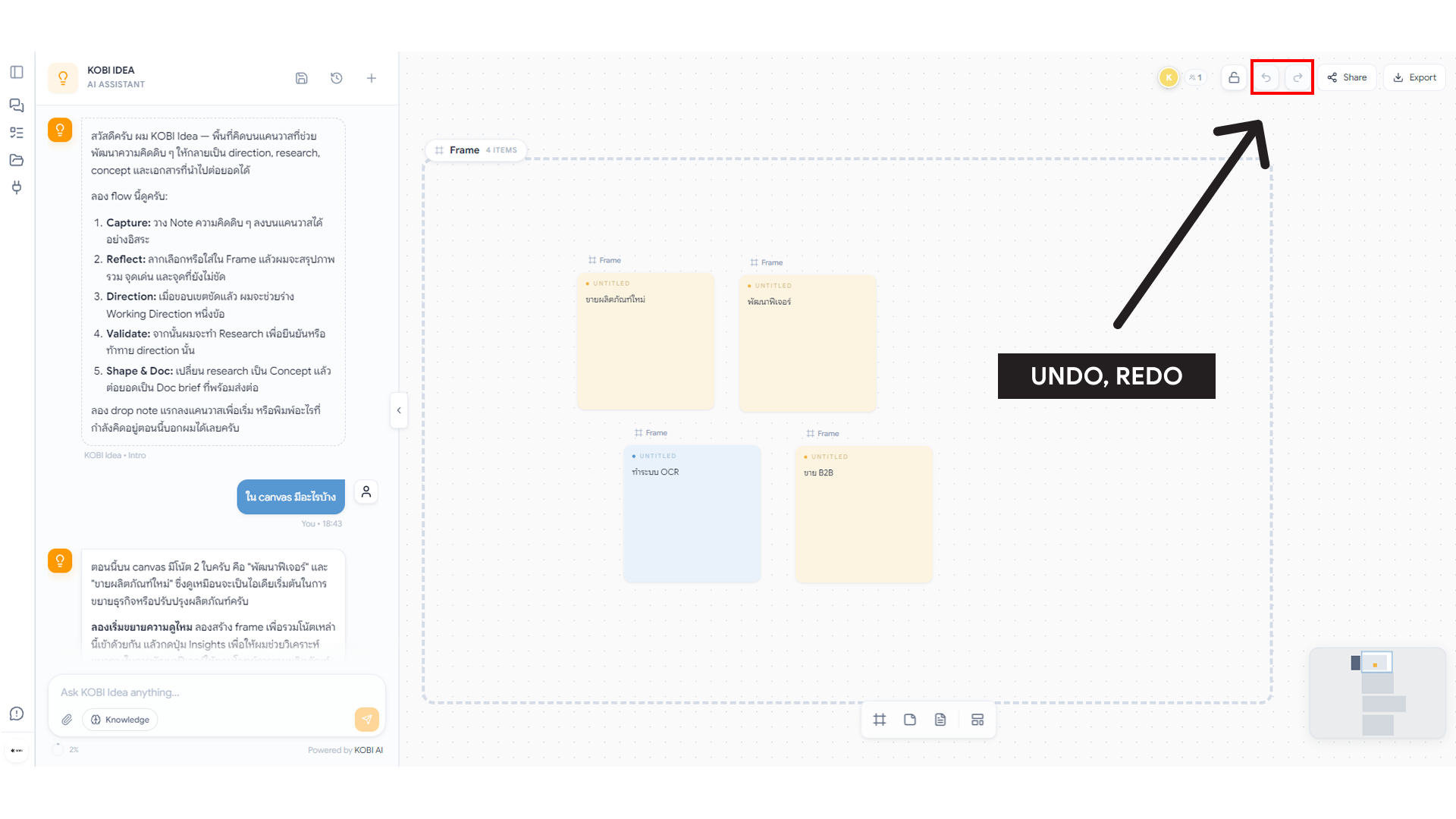
Section titled “Versioning and undo”- Local undo:
Cmd/Ctrl + Zundoes your last action. - Server snapshots are taken automatically every few minutes; ask in the support chat to roll back if something goes truly wrong.
- Every edit is recorded behind the scenes; the surface always shows the resolved current state.
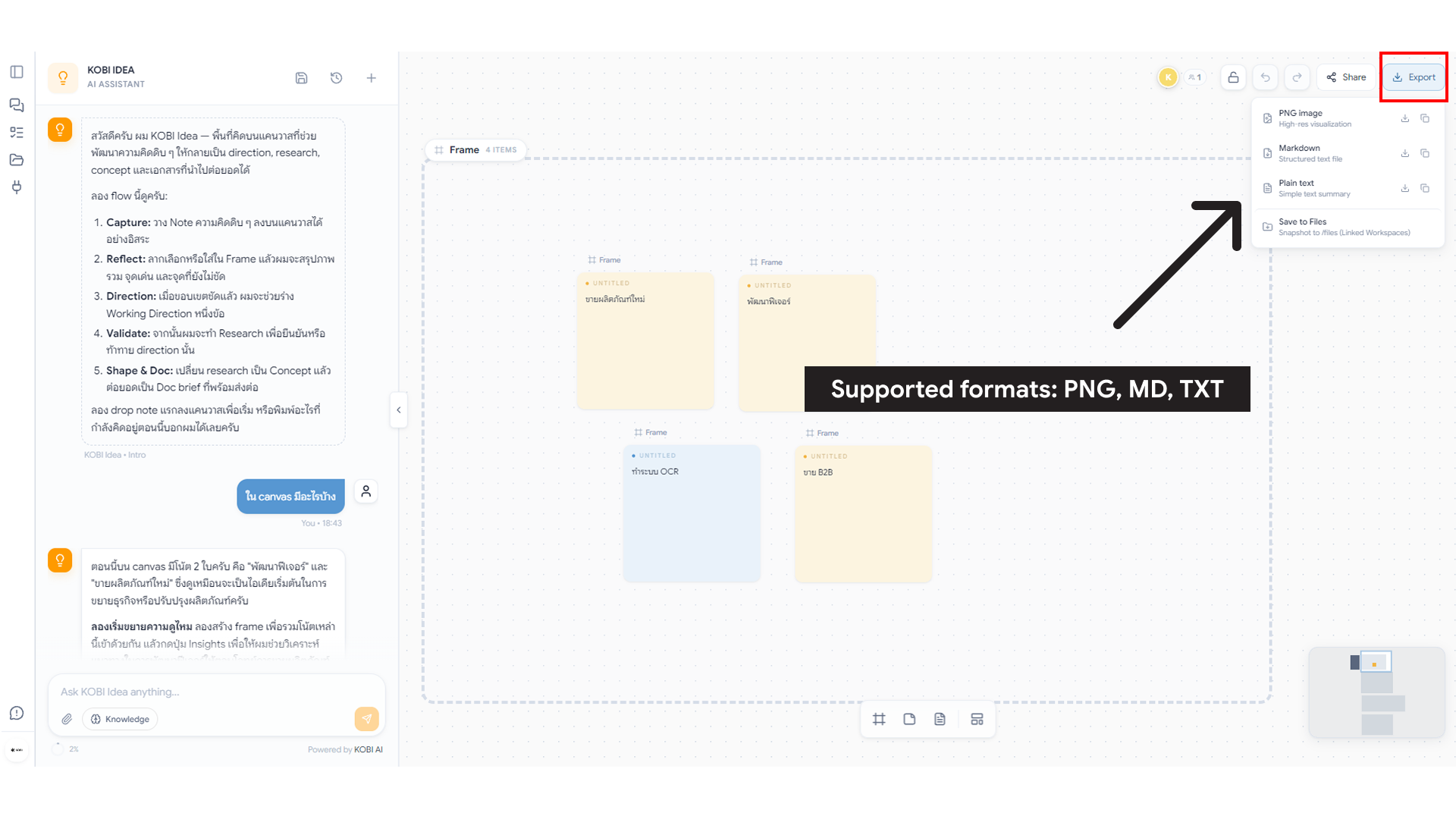
Exporting
Section titled “Exporting”Right rail → Export offers:
- PNG — flat image of the current viewport.
- SVG — vector export for slide decks.
- JSON — full board data for backup or hand-off.